1982: The Hidden Metadata in Every Email: Headers Explained
Every email you’ve ever received is carrying a secret. Beneath the visible message — the subject line, the sender’s name, the body text — lies a detailed technical record that most people never see. These are the email headers, and they tell the complete story of an email’s journey from sender to inbox, including information that the visible portion of the email might be trying to hide.
What Headers Are
Email headers are lines of structured metadata that sit at the top of every email message. They’re defined by the original email standard (RFC 822, published in 1982, and its successor RFC 2822 in 2001) and have been extended by dozens of additional standards over the decades.
When you look at an email in Gmail or Outlook, you see the pretty version — a formatted “From” name, a clean subject line, a timestamp. But underneath that presentation layer, the raw email is a plain text document that starts with headers and ends with the message body, separated by a blank line. The headers can run anywhere from a dozen lines for a simple message to over a hundred lines for a message that’s passed through multiple servers and security checks.
Most email clients hide headers by default because they’re not intended for casual reading. But for anyone who’s ever needed to troubleshoot email delivery, investigate a phishing attempt, or understand why a message ended up in spam, headers are indispensable.
The Essential Headers
From: The sender’s email address as displayed to the recipient. This is trivially easy to forge in the raw email — SMTP doesn’t verify it — which is why authentication protocols exist.
To: The recipient’s address. Straightforward, but worth noting that the “To” header can differ from the actual envelope recipient used in SMTP delivery. This is how BCC works — the BCC address is in the envelope but not in the headers.
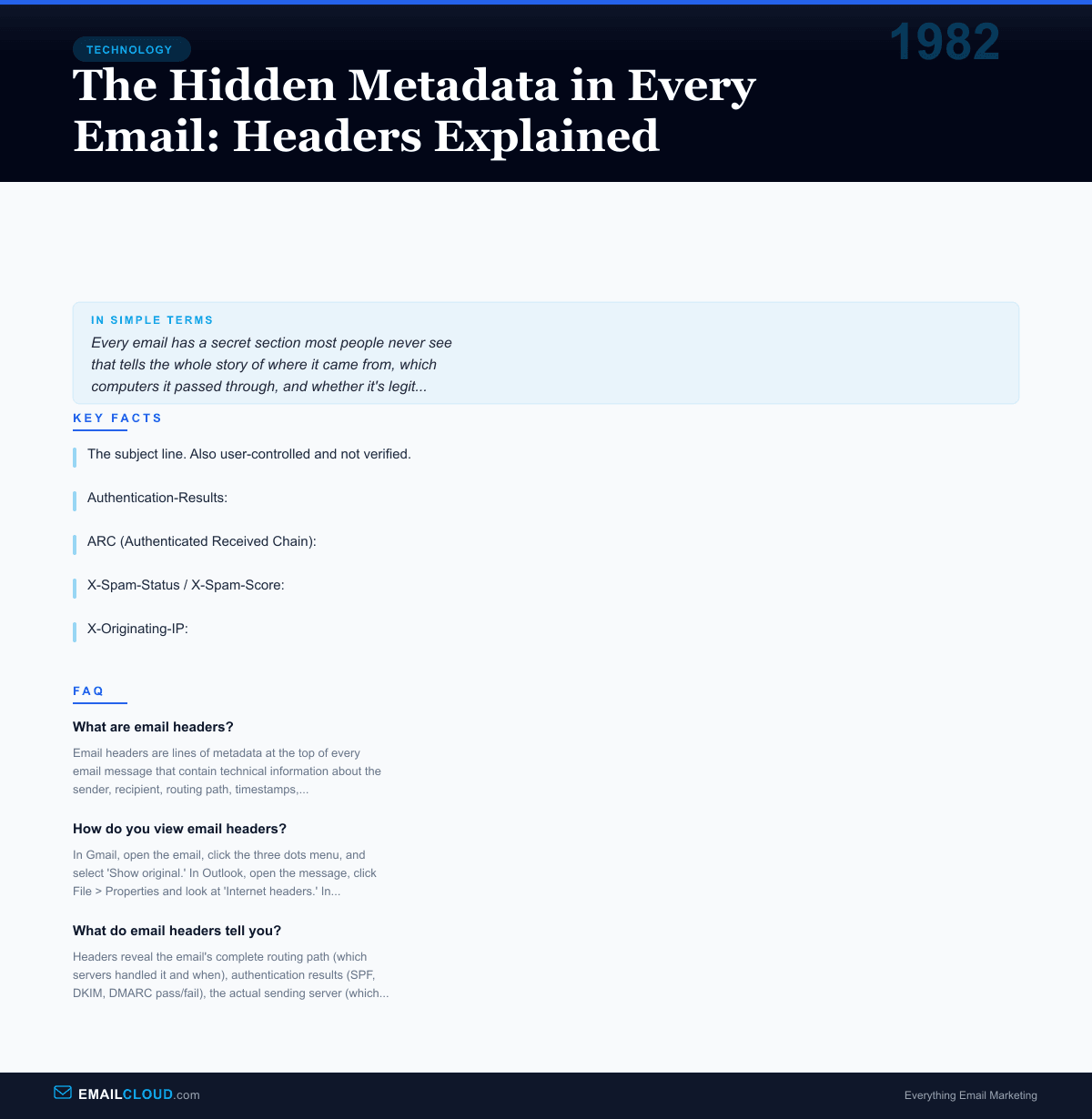
Subject: The subject line. Also user-controlled and not verified.
Date: The timestamp set by the sending email client. This is the sender’s claimed time, not necessarily when the email was actually transmitted. A sender could set this to any date they want, though servers add their own timestamps.
Message-ID: A unique identifier for each email, typically generated by the sending server. It looks something like <a1b2c3d4@mail.example.com>. Message-IDs are used for threading conversations and deduplication.
Reply-To: An optional address that specifies where replies should be sent, which can differ from the “From” address. Legitimate uses include mailing lists and shared mailboxes. Illegitimate uses include phishing emails that display a trusted “From” address but route replies to an attacker.
The Received Chain: Following the Breadcrumbs
The most revealing headers are the “Received” headers. Every mail server that handles an email adds a “Received” header, creating a chain that documents the message’s complete journey. These headers are added in reverse chronological order — the most recent server’s entry is at the top.
A typical Received header looks like:
Received: from mail-server.example.com (192.0.2.1)
  by mx.recipient.com with ESMTPS id abc123
  for <user@recipient.com>;
  Fri, 07 Mar 2026 10:30:45 -0500
This tells you: the server mx.recipient.com received the message from mail-server.example.com at IP address 192.0.2.1, using encrypted SMTP (ESMTPS), for a specific recipient, at a specific time.
By reading the Received chain from bottom to top, you can trace the email’s path from origin to destination. This is invaluable for troubleshooting delivery delays (which server took too long?), identifying forged emails (does the origin match the claimed sender?), and diagnosing routing issues.
Spammers and phishers know this, of course, and often forge Received headers to disguise their true origin. However, while lower headers in the chain (added by untrusted servers) can be fabricated, headers added by the recipient’s own server are trustworthy. A skilled investigator reads the chain from the top (most recent, most trusted) downward, trusting each server’s claims about who it received the message from while treating earlier headers with increasing skepticism.
Authentication Headers
Modern emails carry authentication headers that report the results of verification checks:
Authentication-Results: Added by the receiving server, this header reports the pass/fail status of SPF, DKIM, and DMARC checks. It might read something like spf=pass dkim=pass dmarc=pass for a fully authenticated email, or spf=fail dkim=fail dmarc=fail for a suspicious one.
DKIM-Signature: Contains the cryptographic signature that proves the email was sent from an authorized server and hasn’t been modified in transit. The signature covers specific headers and the message body.
ARC (Authenticated Received Chain): A newer set of headers designed to preserve authentication results when emails are forwarded through intermediary servers (like mailing lists), where traditional DKIM and SPF checks might fail due to message modification.
The X-Headers: Wild West Territory
Any header beginning with “X-” is a custom extension — not part of any standard, but widely used by email providers and security systems. Common examples include:
X-Spam-Status / X-Spam-Score: Added by spam filters to record their assessment of the message. SpamAssassin, for instance, adds headers showing the total score and which rules were triggered.
X-Mailer: Identifies the email client or software used to send the message. This can reveal whether an email was sent from Outlook, Thunderbird, a marketing platform, or a custom script.
X-Originating-IP: Added by some webmail providers, this reveals the IP address of the computer that composed the message — the actual location of the human who typed it.
What Headers Reveal About Phishing
Headers are the primary tool for investigating suspicious emails. A phishing email might display “From: security@yourbank.com” in the visible message, but the headers tell a different story. The Received chain might show the message originated from a server in a country where your bank doesn’t operate. The SPF check might show a failure because the sending server isn’t authorized to send on behalf of your bank’s domain. The DKIM signature might be absent or invalid.
This is why email security professionals and IT administrators are trained to read headers fluently. The visible email is what the sender wants you to see. The headers are what actually happened.
A 40-Year-Old System
The remarkable thing about email headers is that the basic format — field name, colon, value — has been essentially unchanged since RFC 822 in 1982. New headers have been added over the decades, but the structure itself is the same one David Crocker defined over 40 years ago.
This stability is a feature, not a bug. Because headers follow a consistent, well-understood format, every email server, client, and security tool in the world can parse them. The simplicity of the system — plain text, one header per line — has enabled an ecosystem of interoperable tools that spans the entire internet.
Understanding headers won’t make your emails more creative, but it will make you a more informed sender. When a message lands in spam and you need to know why, the headers contain the answer. They always do.
Infographic
Share this visual summary. Right-click to save.
Related Events
Frequently Asked Questions
What are email headers?
Email headers are lines of metadata at the top of every email message that contain technical information about the sender, recipient, routing path, timestamps, authentication results, and more. Most email clients hide them by default.
How do you view email headers?
In Gmail, open the email, click the three dots menu, and select 'Show original.' In Outlook, open the message, click File > Properties and look at 'Internet headers.' In Apple Mail, go to View > Message > All Headers.
What do email headers tell you?
Headers reveal the email's complete routing path (which servers handled it and when), authentication results (SPF, DKIM, DMARC pass/fail), the actual sending server (which may differ from the displayed 'From' address), and client/software information.